Introduction
This article explains how to configure API key authentication when SSO is enabled on your Digi Remote Manager account and provides examples of how to use it.
Prerequisites
- DRM account with a full license.
- SSO configured.
- Administrator access to enable API key creation.
Note: API keys expire after a maximum of one year. Plan to replace them before expiration.
Issue
When Single Sign-On (SSO) is enabled for a Digi Remote Manager (DRM) account, HTTP Basic Authentication cannot be used for automated API calls (e.g., scripts or applications).
Solution
The secure alternative is API Keys. To configure and use API keys with Digi Remote Manager, follow these steps:
- Enable API Key Creation: API key creation is disabled by default, an administrator must enable this feature on Account. Navigate to Account Settings > Accounts, select the Account and enable "Allow API keys":
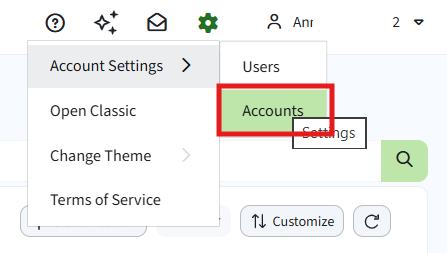
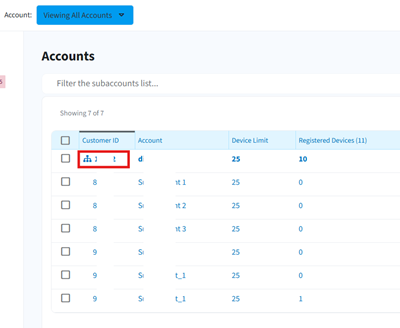
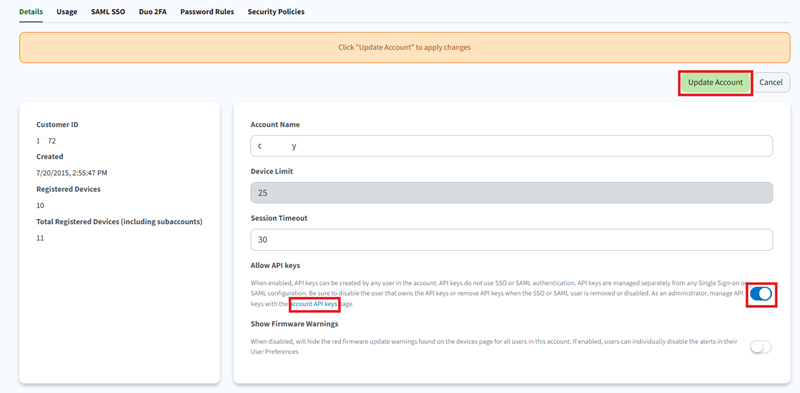
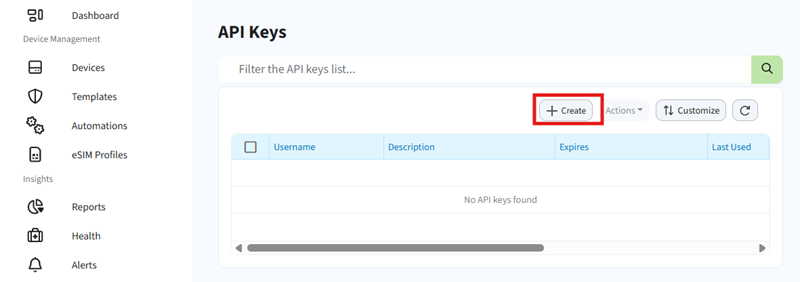
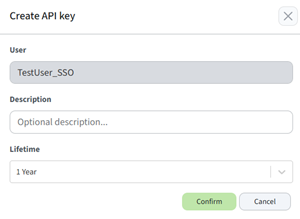
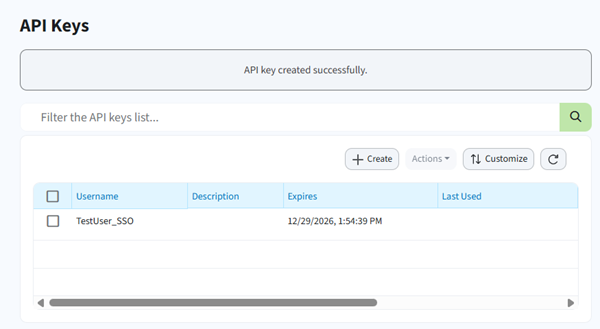
- Create an API Key: Once enabled, each user can create their own API keys from their user profile. Login with an user and navigate to Account Settings > API Keys, then click on Create and confirm (You can optionally add a description and set a custom lifetime (default is 1 year):
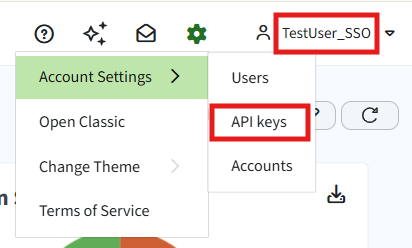
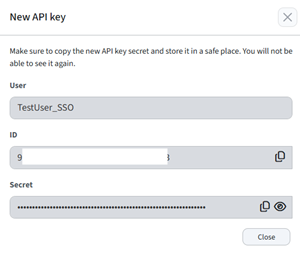
When you create an API key, you'll receive an id and a secret. Make sure to securely store the secret, as it will not be shown again after creation:
- Use the API Key:
- The API keys can be used for authentication instead of HTTP Basic Authentication, which is especially useful if your account uses two-factor authentication or SAML Single Sign-On.
- When making API calls, include the following headers:
X-API-KEY-ID: Your API key IDX-API-KEY-SECRET: Your API key secret
Example:
Here’s a Python script example that uses API keys to make an API call to Digi Remote Manager and retrieve the list of the types fort the devices on the DRM account. The script uses the API Call
https://remotemanager.digi.com/ws/v1/devices/types and the API Keys created in the above steps for the user TestUser_SSO:
import requests
# Replace with your actual API key values
API_KEY_ID = 'your-api-key-id'
API_KEY_SECRET = 'your-api-key-secret'URL = "https://remotemanager.digi.com/ws/v1/devices/types"
headers = {
    'X-API-KEY-ID': API_KEY_ID,
    'X-API-KEY-SECRET': API_KEY_SECRET
}
response = requests.get(URL, headers=headers)
if response.status_code == 200:
    devices = response.json()
    print(devices)
else:
    print(f'Error: {response.status_code} - {response.text}')
Once you run the script, It will print the JSON response containing the device types:

Further Information
For more details, see the API Keys documentation.
Last updated:
Jan 07, 2026