Support for WireGuard (WG) VPNs was added to the DAL OS beginning with system firmware 24.3.28.88.
WireGuard is a VPN protocol that operates at the network layer to provide communication between devices over a public network (more info on WireGuard website: https://www.wireguard.com).
A DAL router can be configured in two WireGuard modes:
- Client mode: the DAL router establishes an outbound WireGuard VPN tunnel to a remote server.
- Server mode: one or more remote devices can establish an inbound WireGuard VPN tunnel to the DAL router.
This article goes over configuring a DAL router as a WireGuard server with a Windows WireGuard client.
DAL WG Server Configuration (1st part)
1 - Browse to Device Configuration > VPN > WireGuard and add a WG Tunnel:
.png?lang=en-US)
Enable the “Device managed private key” option, to allow the DAL Router to generate its own public and private keys.
If this setting is enabled, it triggers the DAL router to automatically generate a private key and corresponding public key. This private and public key is used to establish the encrypted communication between the client and peer via the Wireguard tunnel.
.png?lang=en-US)
2 - After clicking Apply, issue the following Admin CLI command (via System >Terminal) to get the Public Key, which will be needed later to configure the Windows WireGuard Client:
show wireguard name WG_Tunnel verbose
3 - Create a WireGuard Interface (Device Configuration > Network > Interfaces) and setup its Type, Zone, and Device as follows:
.png?lang=en-US)
.png?lang=en-US)
Note which subnet is chosen for this interface, as this will also need to be configured accordingly on the Client side.
Click Apply.
The WG Tunnel status (Insights > VPN > WireGuard) shows that it is now linked to the WG Interface:
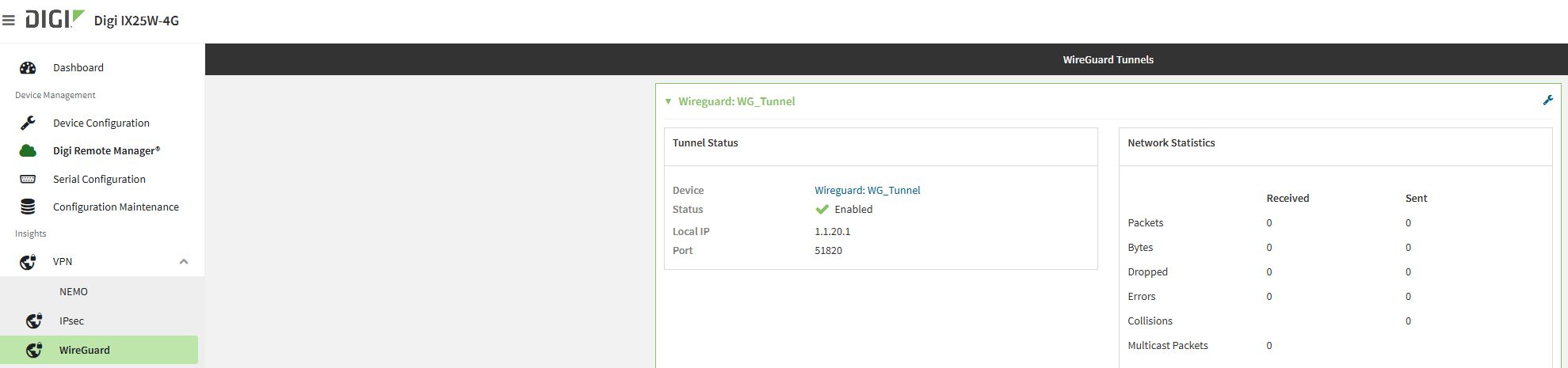
Check the Public WAN IP address of the DAL router, as that will be needed in the next steps to configure the Windows WG Client.
Note: When acting as a WG Server, the DAL router must be reachable from the remote peers, so it will need a Public IP on the WAN interface.
In this example, the WAN used is the DAL device’s cellular modem, so navigate to Insights > Networking > Interfaces to see the mobile IP address (in the applicable section of the interface in question). Depending on the DAL device type, the cellular modem may be named Modem, WWAN, WWAN1, etc.
.png?lang=en-US)
Windows WG Client Configuration:
- Download and Install WG software for Windows: https://download.wireguard.com/windows-client/wireguard-installer.exe
- Once installed, open the WG Software, click on the Add Tunnel arrow and select “Add empty tunnel”.
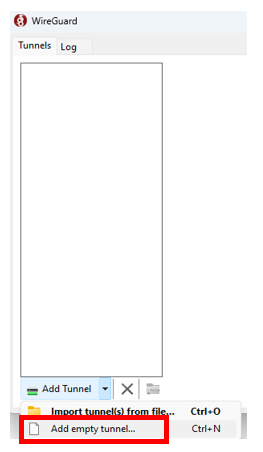
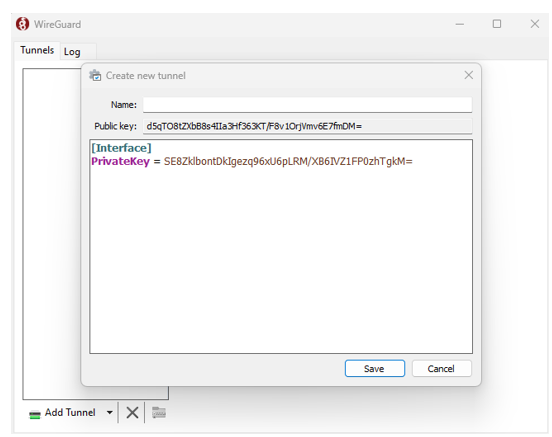
The “Create new tunnel” window will be shown:
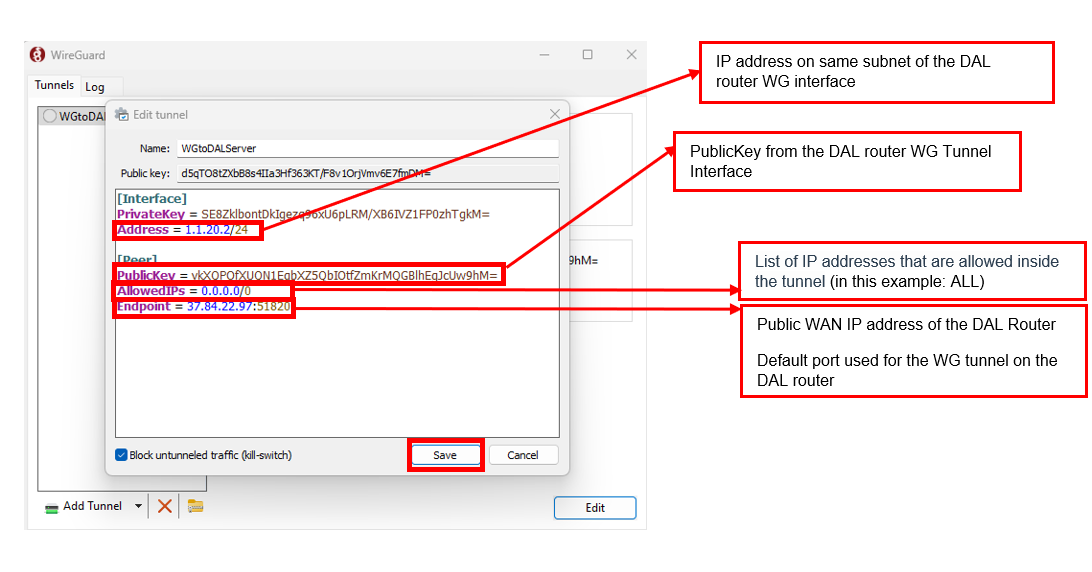
Add the following config (leaving the Interface PrivateKey as is) and then click on Save:
- Enable the tunnel by clicking on Activate:
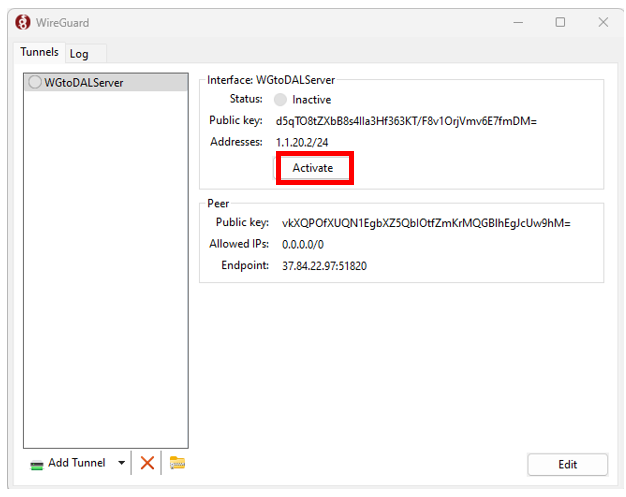
NOTE: In modern DAL firmware, a feature exists to export the Client configuration to a file (to then import to the WireGuard Client). At the time of this writing (August 2026), DAL firmware 25.5.52.21 and newer has a WireGuard issue, preventing the Client from successfully connecting to the Server. Once this is fixed, this KB article will be updated to include instructions on how to export then import the Client configuration.
DAL WG Server Configuration (2nd part)
Browse back in the WG Tunnel configuration and add a Peer within the Peers section (Device configuration > VPN > WireGuard > WG_Tunnel > Peers)

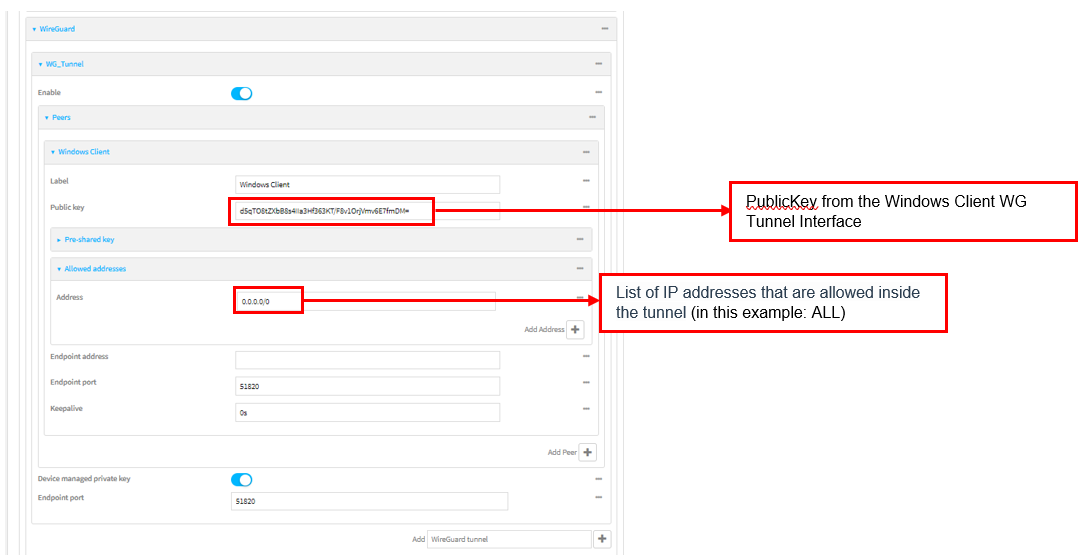
Click Apply.
Tunnel established
Check the WG Tunnel status on the DAL router, the Windows Client will be now shown:
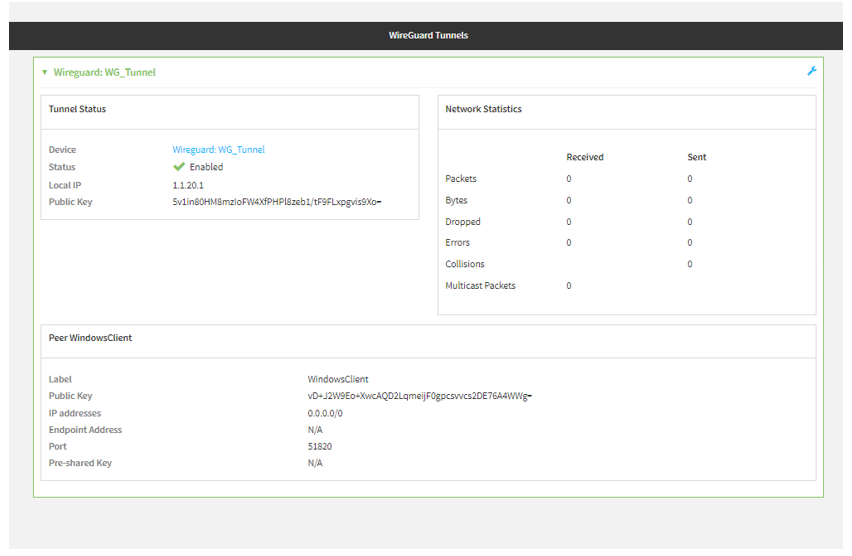
Also check the tunnel status on the Windows WG Client:
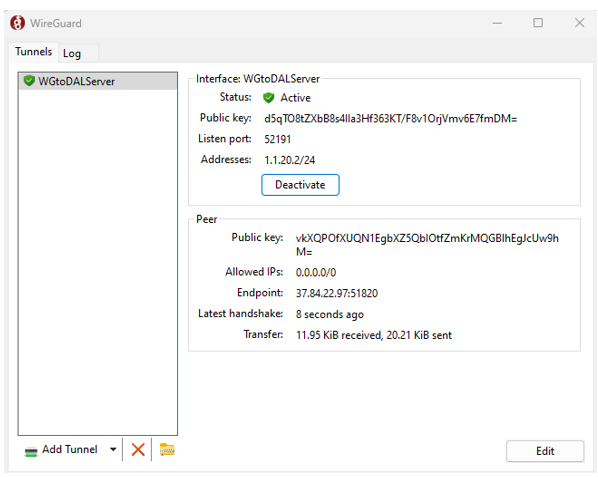
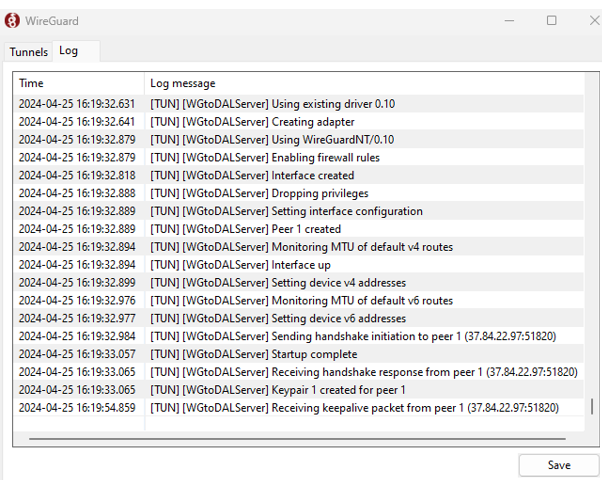
From the logs you can also see that the handshake has been completed and keepalive are received:
Traffic on the tunnel
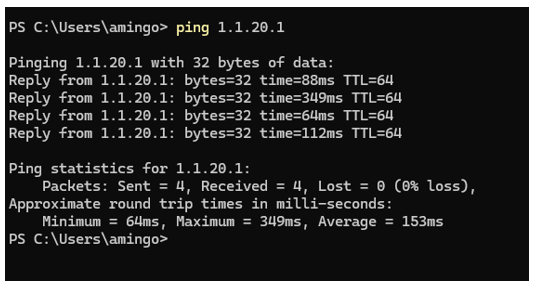
Try a ping from Windows prompt to the WG interface of the DAL router to verify the traffic is passing via the tunnel:
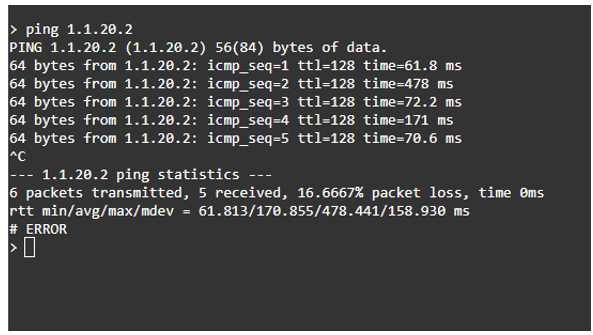
Try a ping from the DAL router terminal to the WG interface of the windows client:
Also, on the WG Tunnel status on the DAL router, note the increase of traffic:
Last updated:
Aug 27, 2026