Introduction
This article describes how to configure a DAL router to receive CLI commands via SMS text message, using the digidevice module's "sms" and "cli" submodules, so that when an SMS is received from an authorized phone number, the router executes its content as a CLI command and texts back the result.
Prerequisites
- A DAL router running a firmware version that supports Python (Please note that python is not included in the base firmware for some models, see more details here: Python on EX/IX/Connect IT series Digi Devices)
- An active SIM with SMS enabled on the cellular carrier plan.
- Administrative access to the router's WebUI or CLI to upload files and configure scheduled tasks.
- The phone number that will be used to send CLI commands to the router (this becomes the allow-listed sender).
- A basic understanding of the router's CLI command syntax, since whatever is sent by SMS is executed verbatim as a CLI command
Issue / Question
Is there a way to run CLI commands on a DAL router over SMS?
Solution
DAL routers support running custom Python scripts on-device through the digidevice module. By combining the digidevice.sms module with the digidevice.cli module, a DAL router can receive a CLI command by SMS text message from an authorized phone number, execute it locally, and text the result back to the sender.
The router can run a small Python script, on a recurring schedule, that listens for an incoming SMS from an allow-listed number, executes its content as a CLI command, and replies by SMS with the result.
The steps below set this up.
Step 1 – Prepare the Python script
- Save the following script as a plain text file. It is also published by Digi here:
digidevice module – SMS example (digi.com documentation)
#!/usr/bin/python3
# Take an incoming SMS message from a specified phone number and run it as
# a CLI command. Send a reponse SMS to the sender before running the command
import os
import threading
import sys
from digidevice import cli
from digidevice.sms import Callback, send
COND = threading.Condition()
allowed_incoming_phone_number = 'allowed_number'
def sms_test_callback(sms, info):
if info['content.number'] == allowed_incoming_phone_number:
print(f"SMS message from {info['content.number']} received")
print(sms)
print(info)
#if sms == "Reboot":
# send_sms(dest, 'Reboot message received, rebooting device...')
# response = cli.execute("reboot")
# print (response)
send_sms(dest, 'Message received (' + sms + '). Performing as CLI command...')
response = cli.execute(sms)
if not response:
response = 'OK'
send_sms(dest, 'CLI results: ' + response)
print (response)
COND.acquire()
COND.notify()
COND.release()
def send_sms(destination, msg):
print("sending SMS message", msg)
if len(destination) == 10:
destination = "+1" + destination
send(destination, msg)
if __name__ == '__main__':
if len(sys.argv) > 1:
dest = sys.argv[1]
else:
dest = allowed_incoming_phone_number
my_callback = Callback(sms_test_callback, metadata=True)
#send_sms(dest, 'Ready to receive incoming SMS message')
print("Waiting up to 60 seconds for incoming SMS message")
# acquire the semaphore and wait until a callback occurs
COND.acquire()
try:
COND.wait(60.0)
except Exception as err:
print("exception occured while waiting")
print(err)
COND.release()
my_callback.unregister_callback()
os.system('rm -f /var/run/sms/scripts/*') # remove all stored SMS messages, since we've processed them
print("SMS script finished. Please re-run if you want to check for more incoming SMS messages")
os._exit(0)
- Edit the allowed_incoming_phone_number variable near the top of the script and replace 'allowed_number' with the phone number that is authorized to send CLI commands
- Save/rename the file to: python_sms_to_cli-commands.py
Step 2 – Upload the script to the router
In the WebUI, go to System → File System → etc → config → scripts, and upload the file. (To enter a subfolder, select the parent folder and use the arrow/expand control next to it.)
Step 3 – Schedule the script to run every minute
Go to Device Configuration → System → Scheduled Tasks → Custom scripts, click Add Script, and select the uploaded file. Configure it to run on a 1-minute interval:
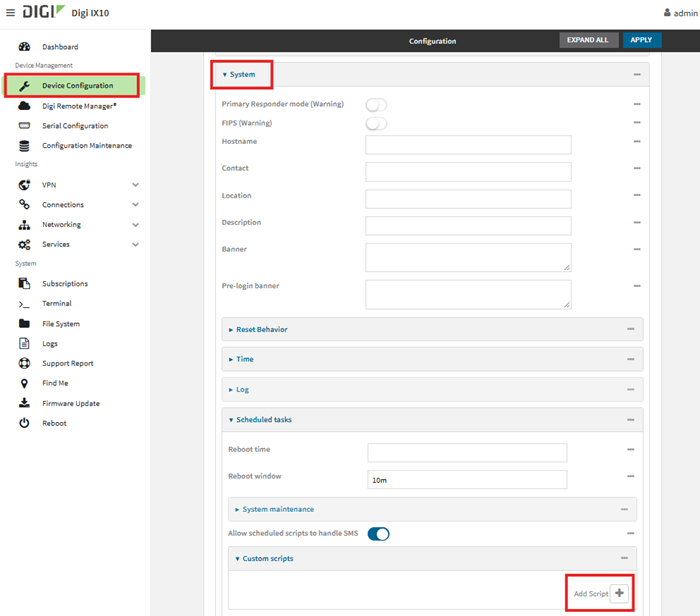
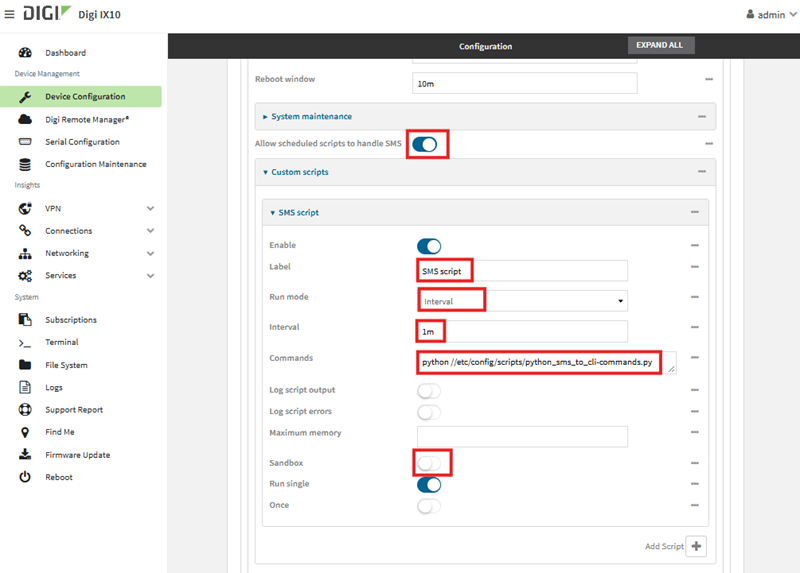
Note:
- Enable “Allow scheduled scripts to handle SMS.”
- Disable “Sandbox” (the sandbox restricts access to the SMS and CLI modules the script needs).
Note: The script itself only listens for an incoming SMS for up to 60 seconds and then exits (either after it processes a message or once the 60-second timeout elapses). Scheduling it to run every minute ensures the router is continuously listening, with only a brief gap between runs.
Examples
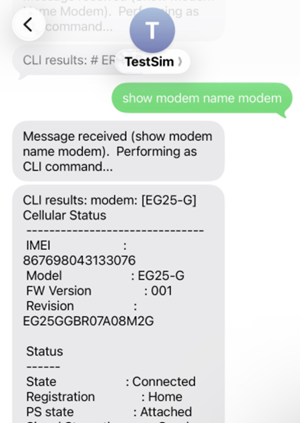
After the router receives the SMS and runs the command, it always sends two reply messages: an acknowledgment, followed by the result. The result message depends on the outcome of the CLI command, as shown below.
1. The command produces output
The output of the CLI command is sent back verbatim in the “CLI results:” reply:
2. The command succeeds with no output
If the command runs successfully but produces no output, the script substitutes the word “OK.”:
.jpg?lang=en-US&width=300&height=203)
3. The command fails
If the CLI command is invalid or fails, the resulting ERROR text is sent back in place of normal output.
.jpg?lang=en-US&width=300&height=209)
Verifying Behavior in the Device Logs
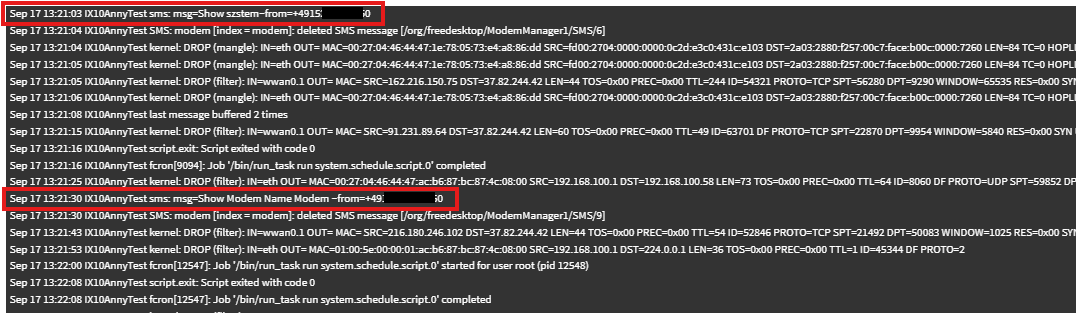
The script's print() statements are captured in the router's system log (System → Logs), which is useful for confirming that a scheduled run actually received and processed the SMS, especially if no reply SMS arrives. Examples of possible logs entries below:
Further information
The following resources can also help when using this script/SMS procedure:
Last updated:
Sep 23, 2026